TABLE OF CONTENTS
- 1. Introduction
- 2. Requirements and Preparation
- 3. Step-by-Step Configuration
- 4. Testing Your Configuration
- 5. Frequently Asked Questions (FAQ)
- 6. Conclusion
1. Introduction
In this guide you will learn how to configure discounts, vouchers, and promo codes in the DelivApp platform. We will cover:
how the Allow Multiple Discounts toggle works,
which combinations of discounts and payment methods are possible,
and how this affects the customer experience at checkout.
These settings let you fine‑tune your promotions and loyalty program, while keeping the flow convenient for customers and transparent for your business.
2. Requirements and Preparation
Before you start, make sure that you have:
Access to the DelivApp admin panel with manager permissions.
An understanding of the existing payment methods (cash, credit card, bonus card, voucher).
Discounts and promo codes already configured in Marketplace → Discounts.
3. Step-by-Step Configuration
3.1. Enabling the option to apply multiple discounts
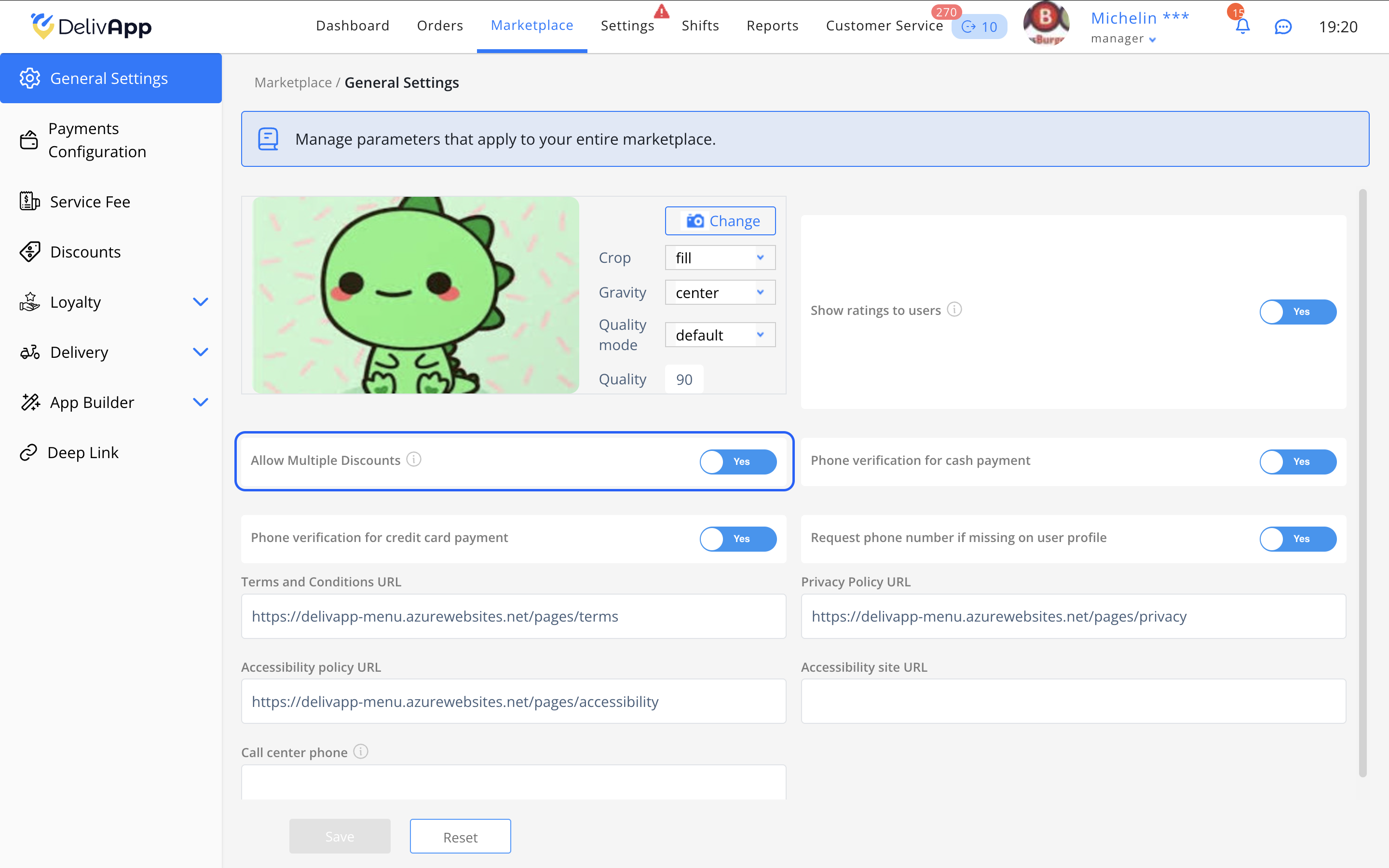
Go to Marketplace → General Settings.
Find the Allow Multiple Discounts parameter.
Switch it to Yes.
Explanation
When Allow Multiple Discounts is enabled, the customer can use several discounts at the same time (for example, an automatic discount and a promo code). If the option is disabled, only the largest discount is applied.
3.2. Discount-Level Toggle
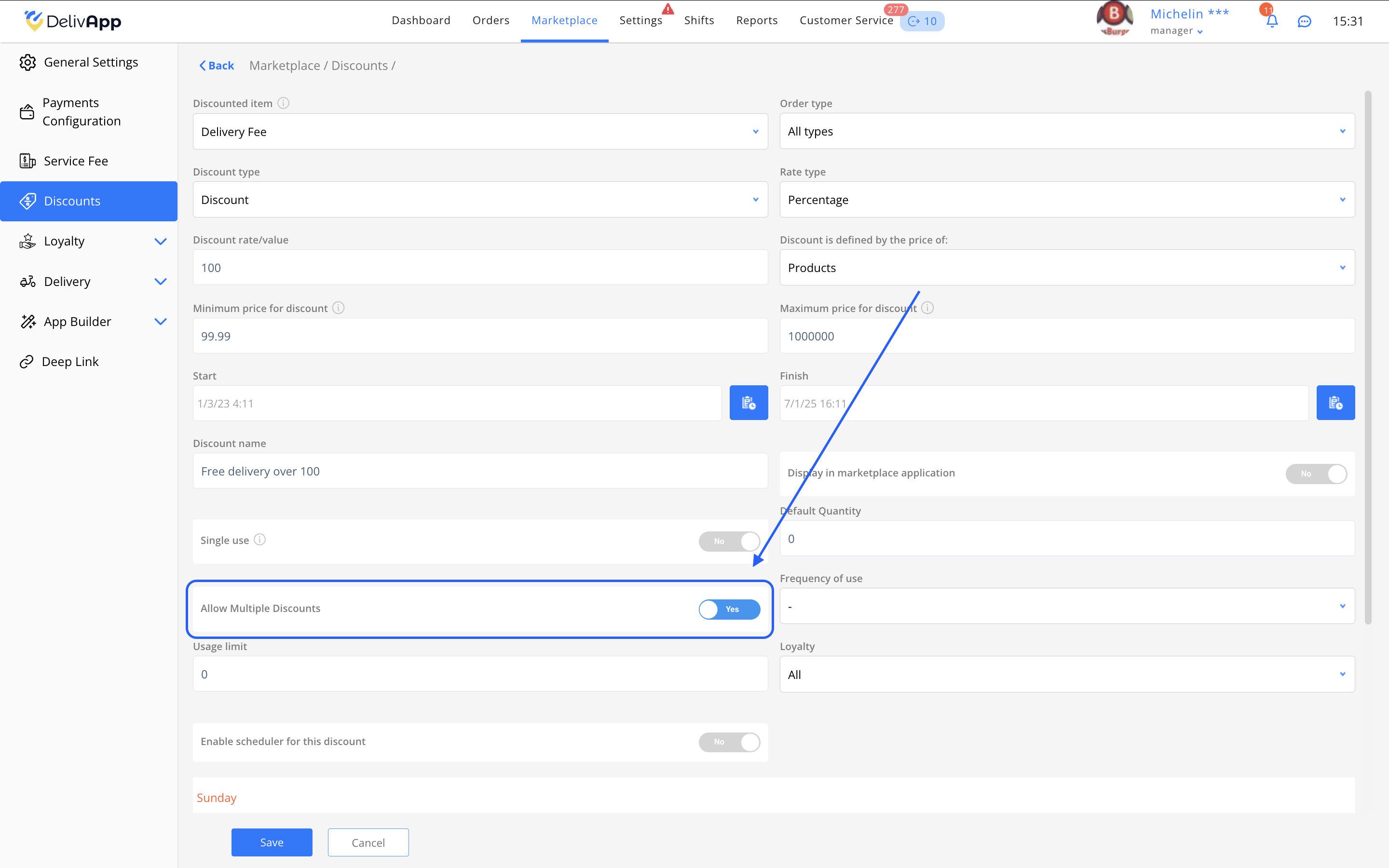
Each discount you create also has its own Allow Multiple Discounts parameter.
If this parameter is enabled inside a specific discount, that discount will still be combined with other active discounts, even when the global Allow Multiple Discounts setting is turned off.
For more details on how to create discounts, see the separate guide: Creating and Configuring a Discount in the Marketplace
3.3. Configuring Logic for Discounts, Bonus Cards, and Vouchers
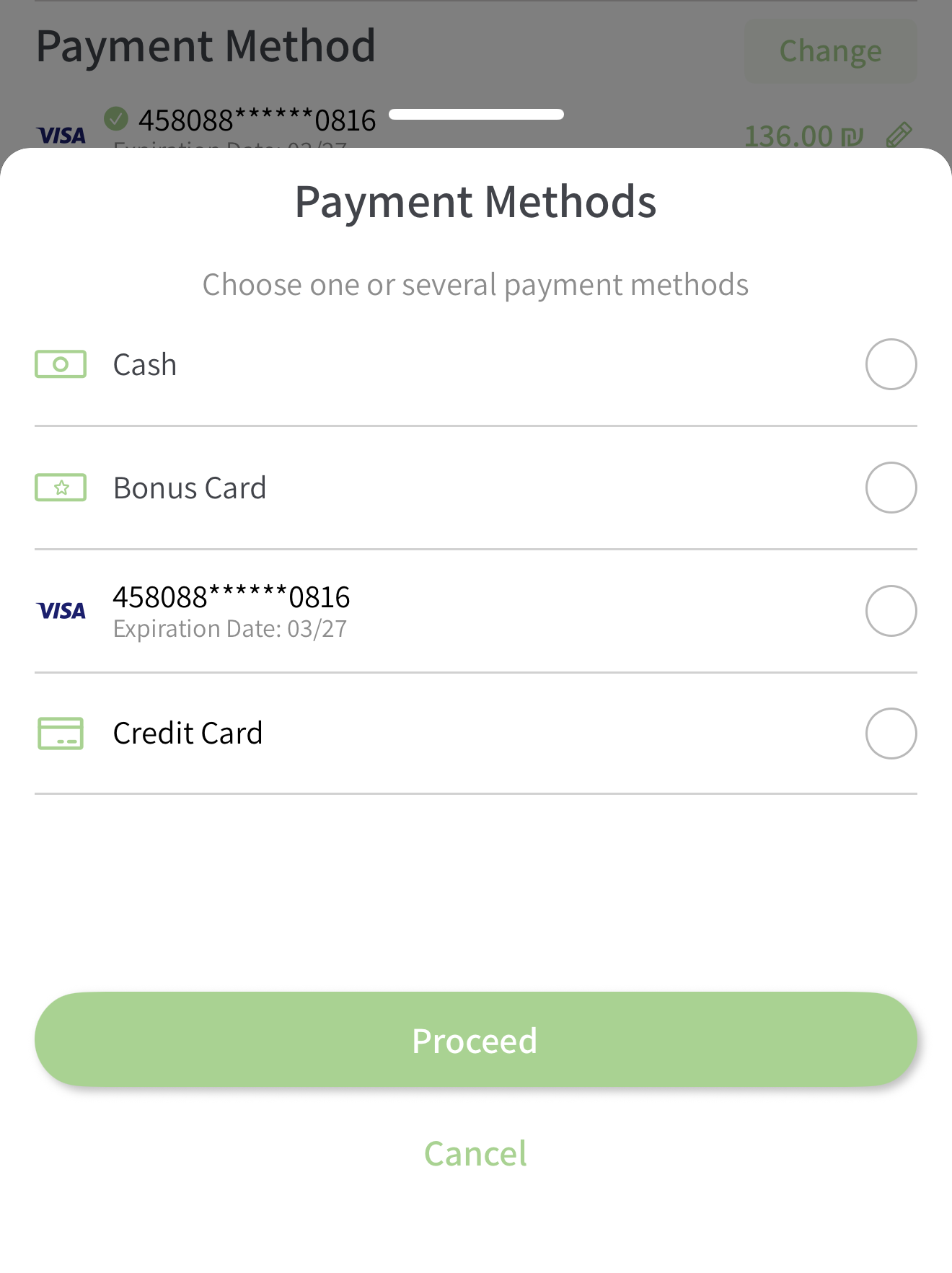
At the Checkout stage (the Payment Methods screen), the customer can choose a payment method: Cash, Credit Card, Bonus Card, or Voucher.
IMPORTANT:
Cash, Credit Card, Apple Pay, and Google Pay are mutually exclusive payment methods: the customer can select only one of them.
Bonus Card and Voucher also cannot be used together.
3.4. Possible Combinations of Discounts and Promo Codes
The table below shows how discounts apply depending on the state of the Allow Multiple Discounts toggle.
When the toggle is ENABLED
| Payment Method | Discounts | Promo Code | Discounts + Promo Code |
|---|---|---|---|
| Bonus Card | ✅ | ❌ | ❌ |
| Voucher | ✅ | ❌ | ❌ |
| Without Bonus Card or Voucher | ✅ | ✅ | ✅ |
When the toggle is DISABLED
| Payment Method | Largest Discount | Promo Code | Discount + Promo Code |
|---|---|---|---|
| Bonus Card | ✅ | ❌ | ❌ |
| Voucher | ❌ | ❌ | ❌ |
| Without Bonus Card or Voucher | ✅ | ✅ | ❌ |
3.5. Real-Life Examples
Bonus card selected
Toggle ON → all discounts can be applied.
Toggle OFF → only the largest discount is applied.
If a promo code is entered, the bonus card is not applied.
Voucher selected
Toggle ON → discounts can be applied together with the voucher.
Toggle OFF → the voucher is used on its own.
If a promo code is entered, the voucher does not apply.
Neither bonus card nor voucher selected
Toggle ON → both discounts and a promo code can be used together.
Toggle OFF → either the largest discount or the promo code is applied.
4. Testing Your Configuration
To make sure that your settings work correctly:
Open the DelivApp customer application.
Add items to the cart and go to Checkout.
Check the following:
Discounts are applied according to your configuration.
The final amount is calculated correctly.
Promo codes work without conflicts with bonus cards and vouchers.
5. Frequently Asked Questions (FAQ)
Can I combine a promo code with a bonus card?
No, these options are mutually exclusive.Why didn’t the discount apply?
Check if the Allow Multiple Discounts toggle is deactivated and whether the minimum order amount for the discount is met.What if the customer doesn’t see the discount in the app?
Make sure the Show in Marketplace App option is enabled when creating the discount.Can I use a voucher and a discount together?
Only if the Allow Multiple Discounts parameter is enabled.How can a customer remove a promo code?
They can delete the code on the checkout screen or refresh the order page.
6. Conclusion
You now know how to configure discounts, vouchers, and promo codes in DelivApp.
Proper setup allows you to effectively manage promotions and enhance the customer experience.
For any specific issues, contact DelivApp Support through the Admin Panel or via the Help section.
Was this article helpful?
That’s Great!
Thank you for your feedback
Sorry! We couldn't be helpful
Thank you for your feedback
Feedback sent
We appreciate your effort and will try to fix the article