TABLE OF CONTENTS
- 1. Introduction
- 2. Requirements and Preparation
- 3. Detailed Step-by-Step Setup
- 4. Testing the Result
- 5. Frequently Asked Questions (FAQ)
- 6. Conclusion
1. Introduction
Let’s configure delivery in your marketplace: create zones, define the delivery price calculation logic (distance based / fixed region based / mixed mode), and enable driver tips. As a result, customers will see the correct delivery cost and predefined tip amounts, while orders will be routed to the appropriate zones.
2. Requirements and Preparation
Access to the admin panel with manager/administrator permissions.
Understanding of your service geography (areas/radii) and pricing.
If needed — delivery polygons created in advance in Geo Settings (required for zones of type reference).
(Optional) An operation profile created in the Operations Management sections (Working Modes), so you can apply predefined cooking and delivery time settings to a specific zone.
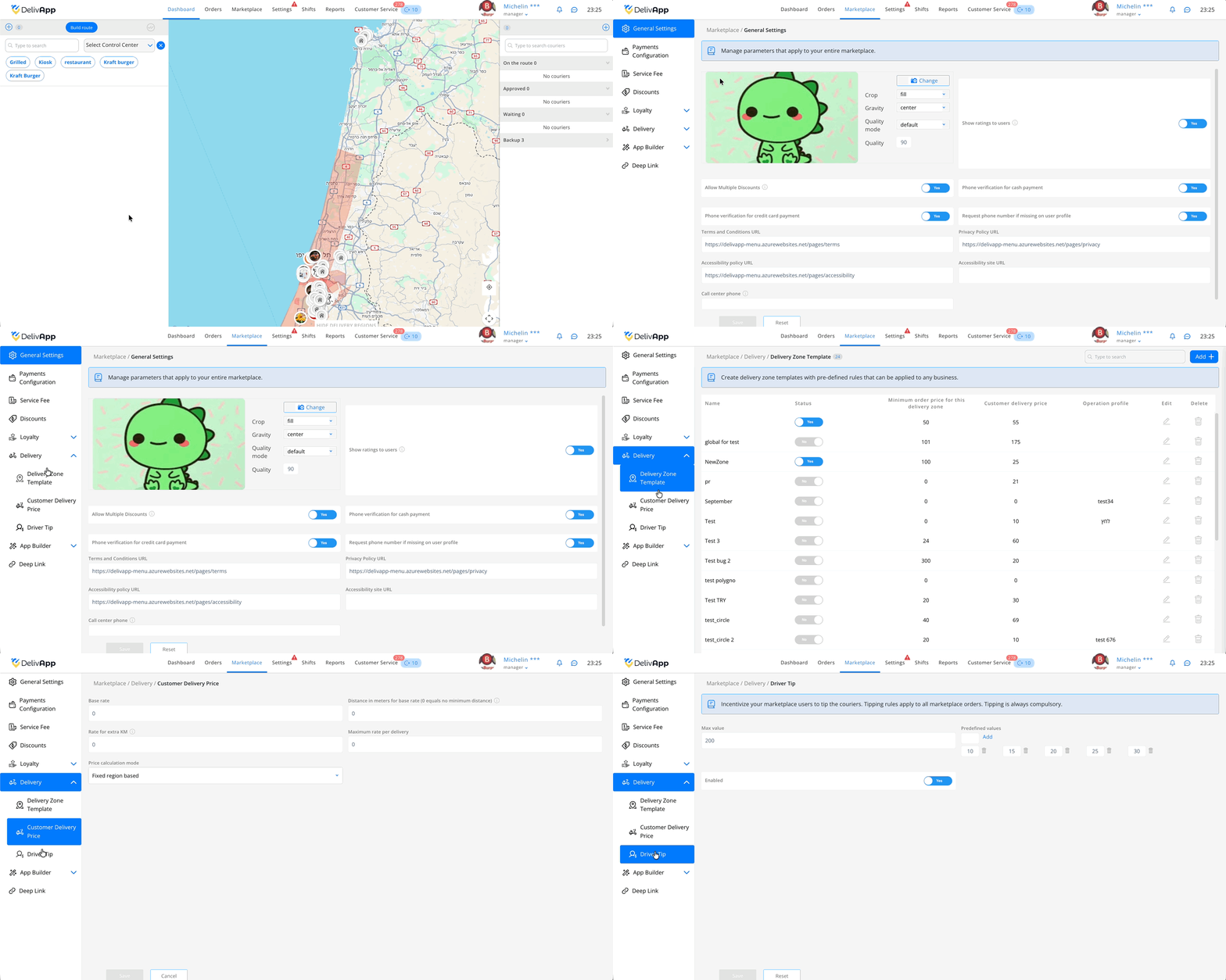
Where to find the settings:
Marketplace → Delivery. The left-side menu contains three subsections: Delivery Zone Template, Customer Delivery Price, Driver Tip.
3. Detailed Step-by-Step Setup
1. Open the list of delivery zone templates
Go to Marketplace → Delivery → Delivery Zone Template. Here you will see all previously created zones. Add new ones using the Add button in the top-right corner.
TIP: Give your zones clear names (e.g., Center polygon, North circle 5 km) — this makes maintenance easier.
2. Create a new delivery zone
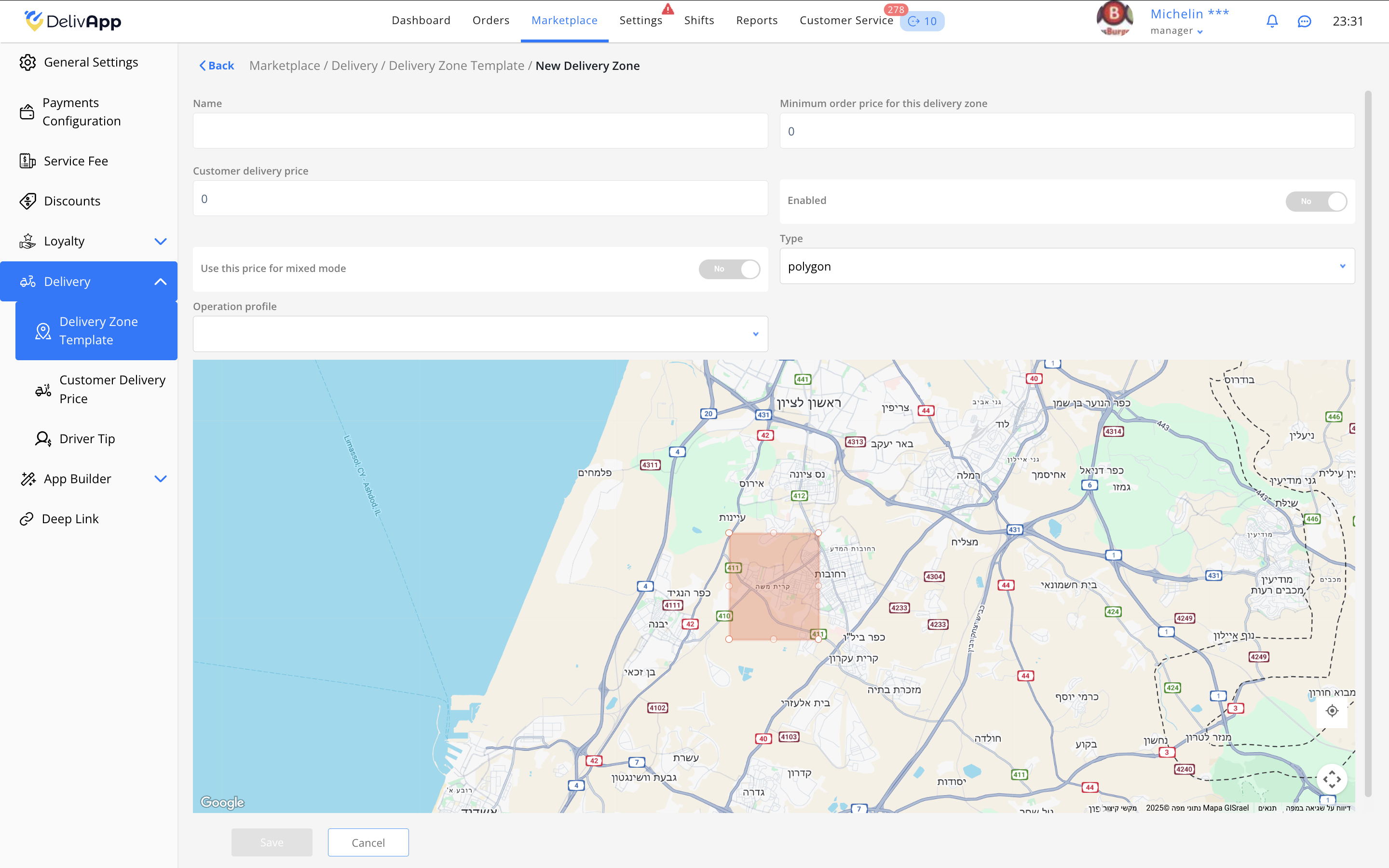
Click Add. The New Delivery Zone form will open. Fill in the fields:
Name — any descriptive string.
Minimum order price for this delivery zone — if set to 0, there is no minimum.
Customer delivery price — the fixed price shown to the customer when using region-based calculation. If set to 0, delivery in this zone will be free.
Enabled — switch to Yes to activate the zone.
Use this price for mixed mode — enable if you want to combine the zone price with a per-kilometer markup (see Step 4).
Operation profile — select one if you want to apply specific cooking/delivery timing rules.
IMPORTANT: Make sure to enable the zone using the Enabled switch — otherwise it won’t apply even after saving.
3. Select the zone type and set boundaries
In the Type field, the following options are available: polygon, circle, reference.
3.1.1. Polygon
Draw a shape on the map and adjust its boundaries using the white points. When dragging, additional points appear for fine-tuning.
Suitable for zones with complex shapes.
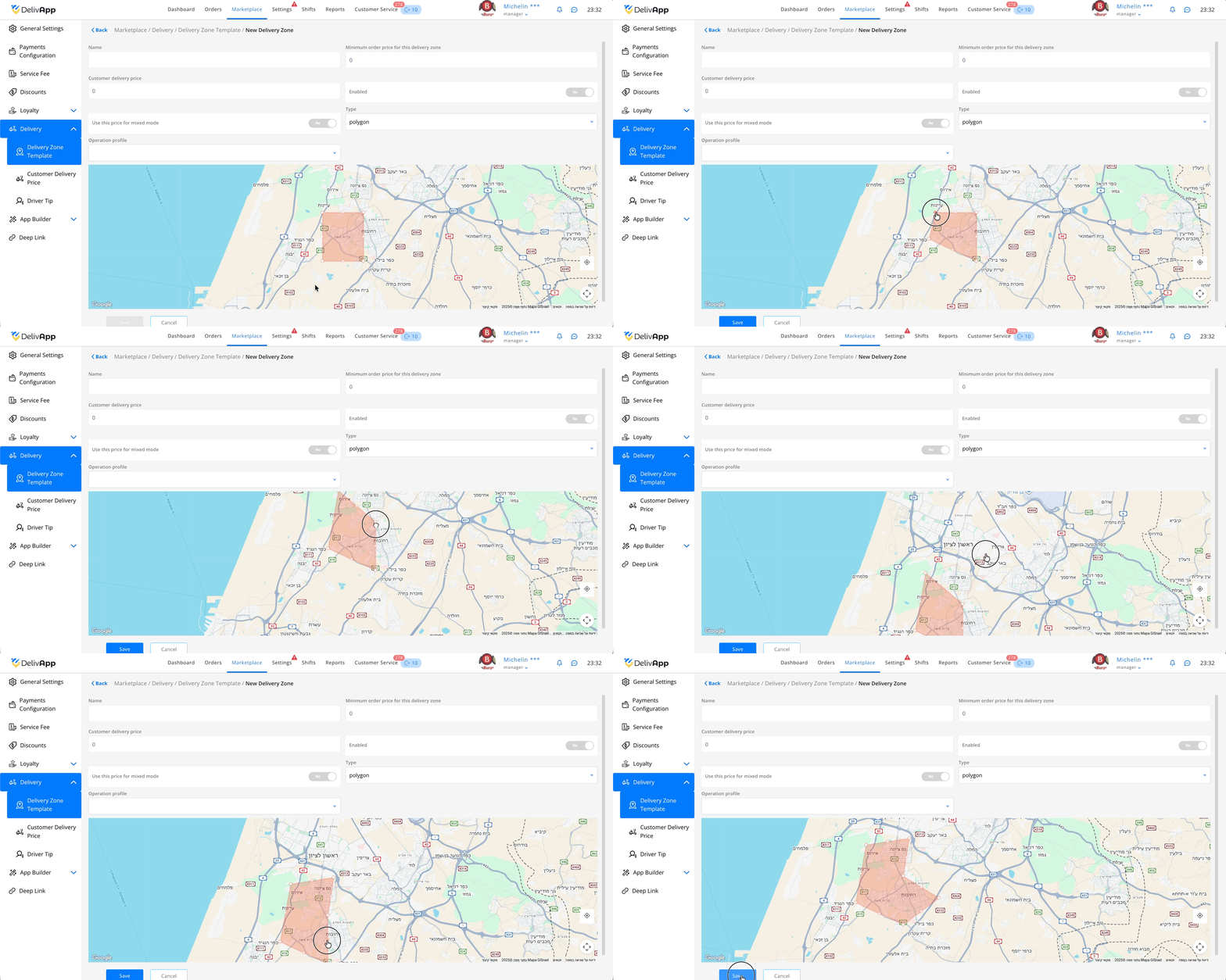
PRO TIP: It’s convenient to outline polygons along major streets or rivers — this makes the boundaries easier to match.
3.1.2. Circle
Move the circle to the desired location and adjust the radius (shrink/expand). Hovering will show the current radius distance.
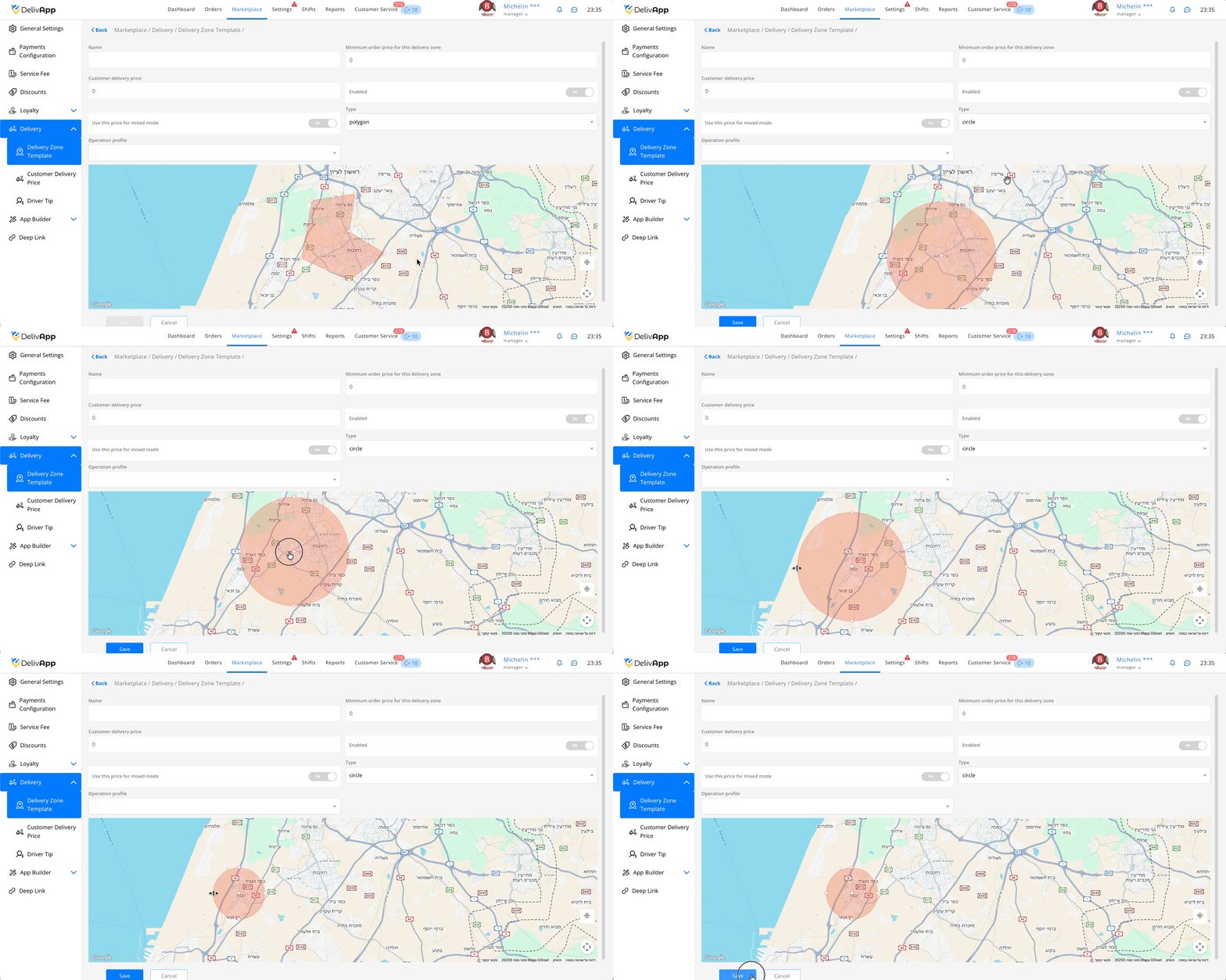
3.1.3. Reference
Use this if polygons have already been created in Geo Settings.
In Reference polygon, choose one of the existing polygons.
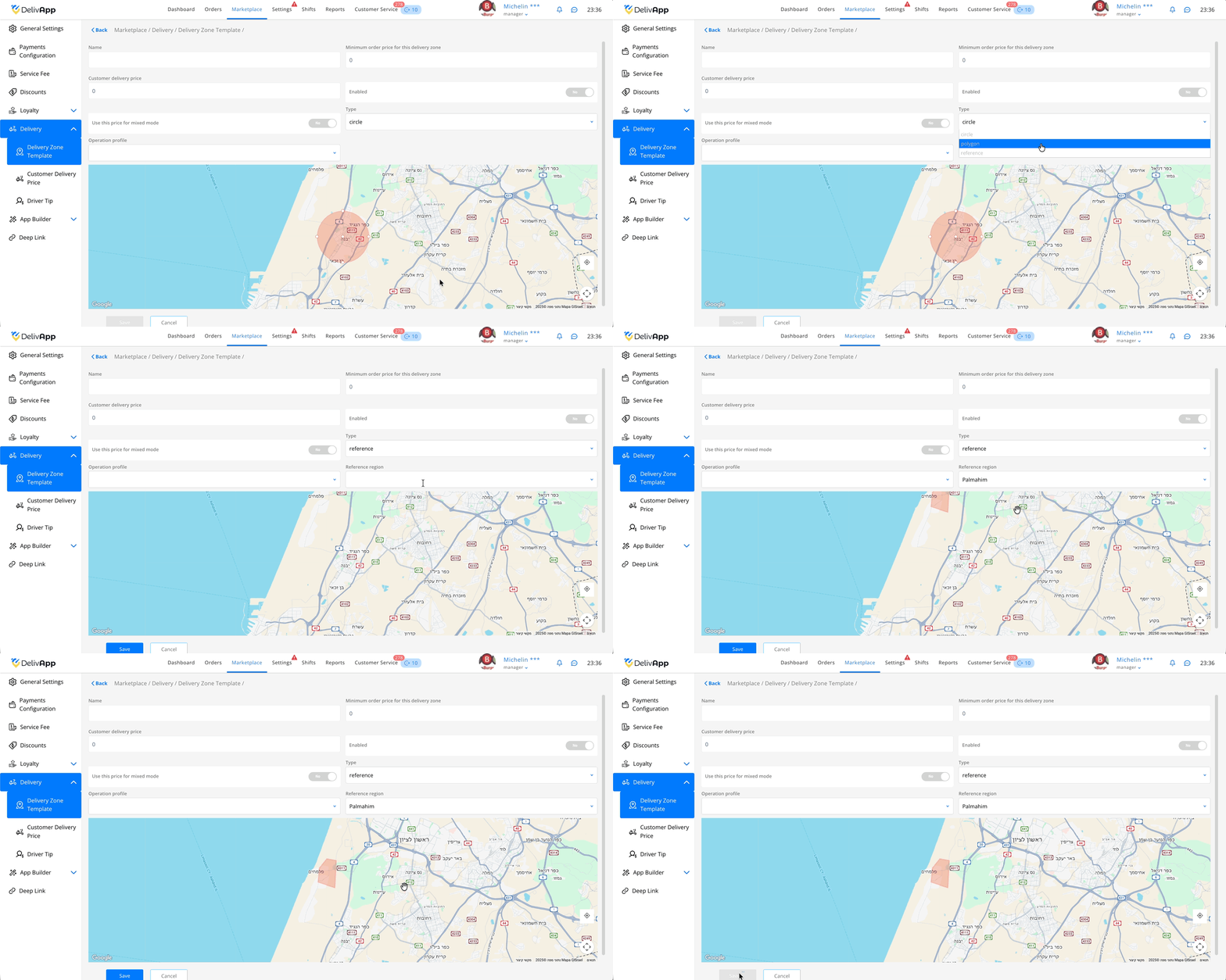
After selecting the type and defining the boundaries, click Save. The new zone will appear in the general list and will start being applied.
TIP: Avoid large overlaps between zones — the customer should receive a single, unambiguous calculation. If overlaps are unavoidable, define clear rules and test thoroughly (see “Testing the Result”).
3.4. Configure delivery price calculation for the customer
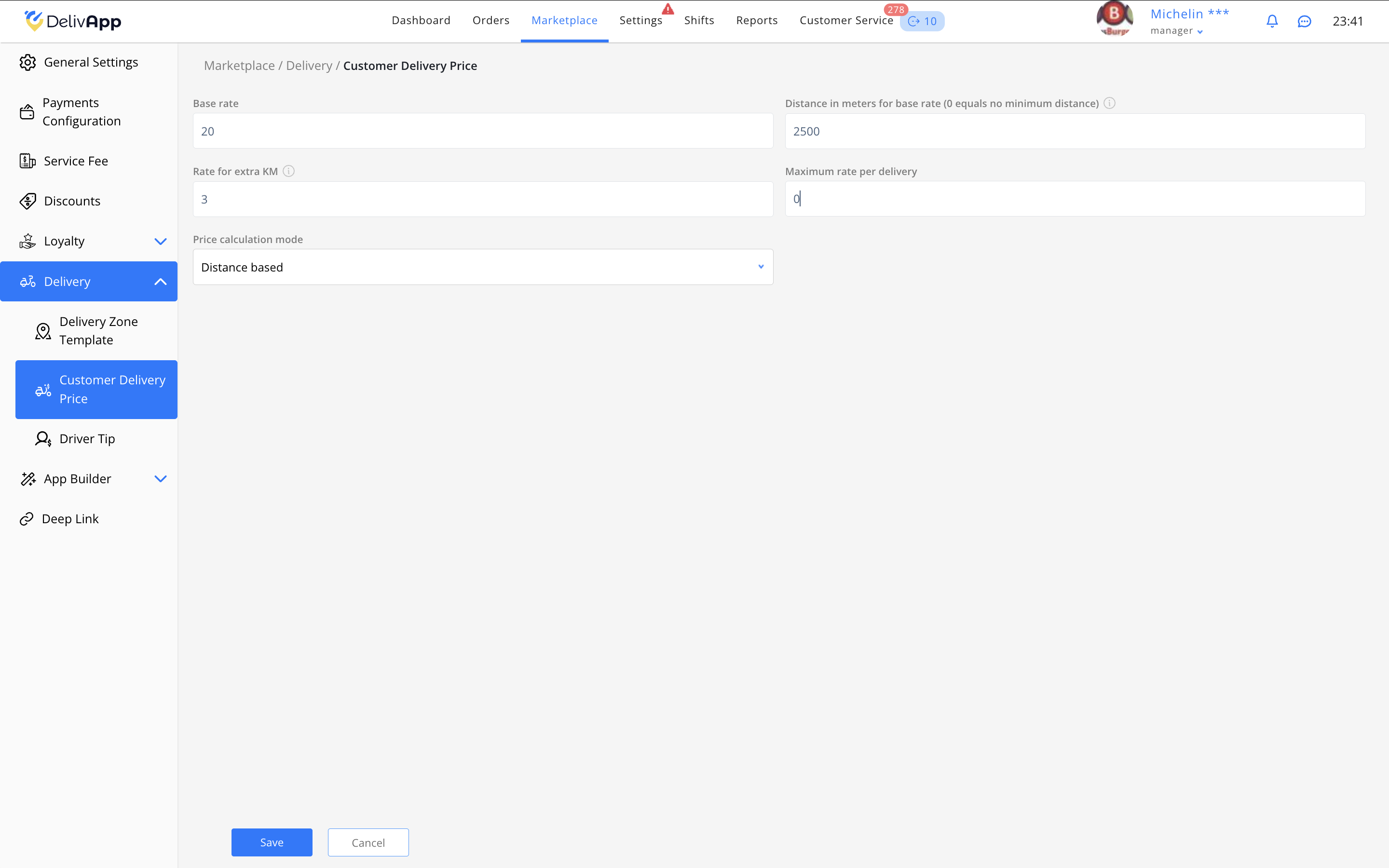
Go to Customer Delivery Price. Here you configure the parameters used when the calculation is distance based or mixed.
Form fields:
Base rate — the amount charged for the base distance.
Distance in meters for base rate — if set to 0, the base rate applies from 0 meters (no minimum distance).
Rate for extra KM — surcharge applied for every additional kilometer.
Maximum rate per delivery — the upper limit for the delivery cost.
Price calculation mode — options: Distance based, Fixed region based, Mixed mode.
How mixed mode works:
Price applied from the zone (Delivery Zone Template → Use this price for mixed mode)
surcharge based on Rate for extra KM.
IMPORTANT: The Maximum rate per delivery field may silently cap the final price. If the customer sees a lower-than-expected value — check this limit first.
3.5. Enable and configure driver tips
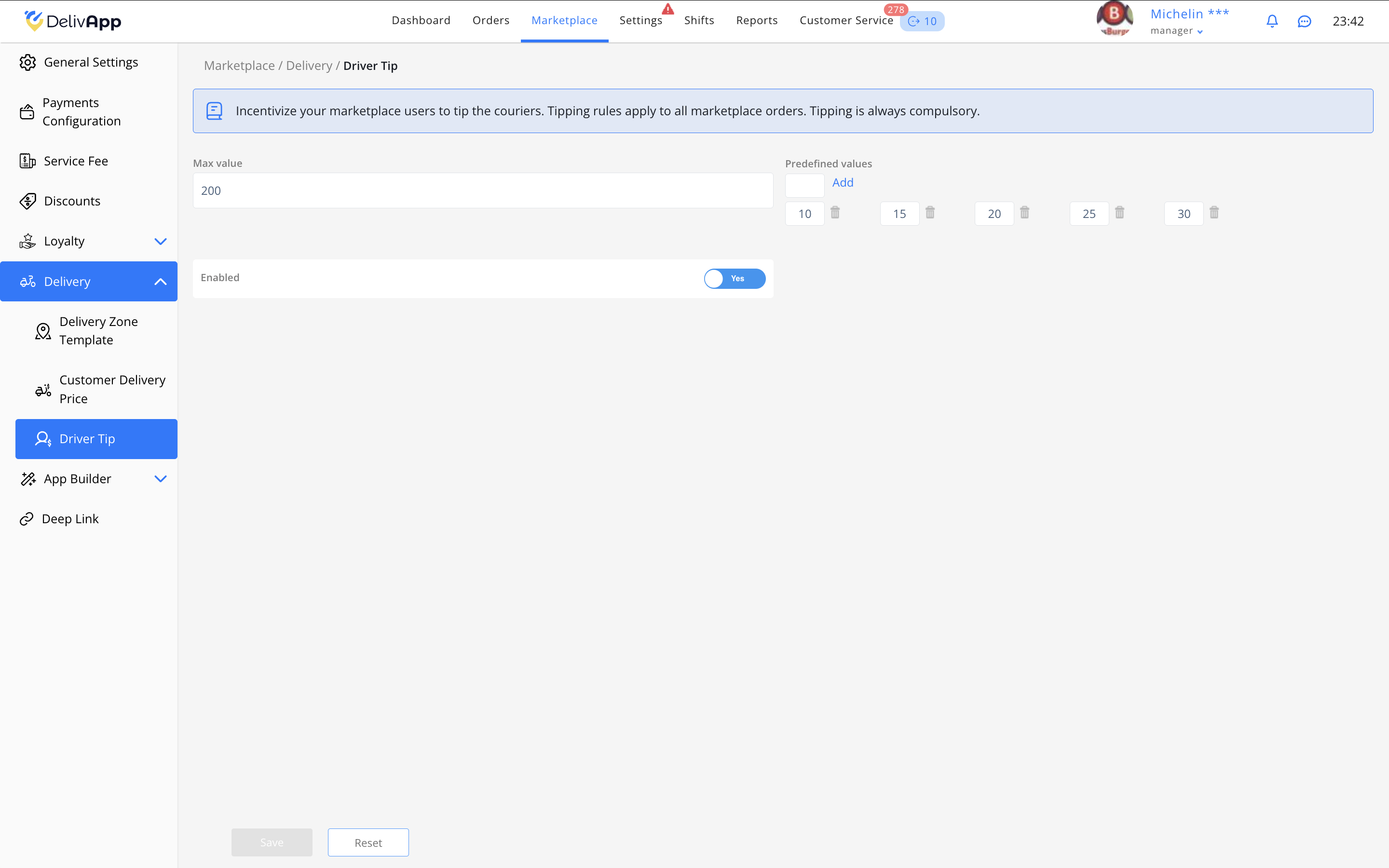
Go to Driver Tip.
Max value — limits the tip size; if set to 0, there is no limit.
Predefined values — add convenient quick-select amounts (e.g., 10 / 15 / 20 / 25 / 30). These can be removed and re-added at any time.
Enabled — switch to Yes to show tips at checkout. If disabled, tips will not be available.
TIP: Choose predefined values based on your average order size — this usually increases tip conversion.
4. Testing the Result
Zones: return to the list (see Screenshot 7) and ensure the Status of each zone is set to Yes.
Price calculation: in the customer app/web storefront, test multiple addresses (inside and outside zones). Compare the final price to your expected calculation (taking into account base rate, extra KM, and maximum limit).
Mixed mode: enable a test zone with mixed mode and verify that the per-KM surcharge is added to the zone price.
Tips: place a test order and confirm that the predefined tip amounts appear at checkout.
PRO TIP: For quick debugging, temporarily set a very high Maximum rate per delivery — this helps you see the “raw” formula without the max cap interfering.
5. Frequently Asked Questions (FAQ)
A zone was created, but it’s not working. What should I check?
Ensure the Enabled switch is on and click Save. Verify that the test address actually falls within the zone boundaries.
The price is lower/higher than expected. Why?
Check the Maximum rate per delivery, Distance in meters for base rate, and whether mixed mode is active (both in the zone and in the pricing settings).
I don’t see the “reference” option or the polygon list is empty.
This means no polygons exist in Geo Settings. Create them there first, then return to the zone and set Type = reference.
Tips do not appear at checkout.
In Driver Tip, set Enabled = Yes. Make sure the customer refreshed their page/app.
How to deal with overlapping zones?
Minimize overlaps. If unavoidable, test multiple addresses and set an internal rule for zone priority for your team.
Can I make delivery free within a zone?
Yes. Set Customer delivery price = 0 (and disable mixed mode if you don’t want extra KM charges to apply).
What does 0 mean in “Distance in meters for base rate”?
It means there is no minimum distance — the base rate applies from 0 km.
6. Conclusion
Your marketplace is now fully configured: delivery zones are created, pricing is transparent, and tips are enabled. This reduces pricing errors, improves conversion, and makes delivery rules clear to customers. For non-standard scenarios, contact your DelivApp support team or your installation administrator.
Was this article helpful?
That’s Great!
Thank you for your feedback
Sorry! We couldn't be helpful
Thank you for your feedback
Feedback sent
We appreciate your effort and will try to fix the article